Find these elements in Library › Motion › Elements, section Audio visualizers. Click a tile to add it at the playhead, or drag it onto the timeline. Select the item on the timeline to change its options in the Inspector. Audio visualizers follow the sound of the audio item or whole track you pick in Audio source. On a track, where two items overlap, the one that starts later wins. A visualizer never plays sound itself, and it rests while the sound is silent, muted, missing or not playing.

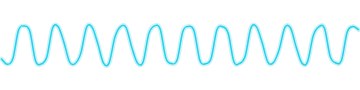
Oscilloscope

Oscilloscope element
A smooth line tracing the sound wave. Key options in the Inspector:
  • Audio source: The audio item, or whole track, to follow.
  • Sensitivity: Gain applied to the sound before drawing.
  • Glow: A soft, wider line under the trace.
When to use: Podcasts, voice notes and sci-fi looks.

Waveform progress

Waveform progress element
Loudness bars across the whole element that fill with colour as the sound plays. Key options in the Inspector:
  • Audio source: The audio item, or whole track, to follow.
  • Bars: Number of bars (24–200).
  • Playhead: A thin line at the current position.
When to use: Podcast clips and song previews that show progress.

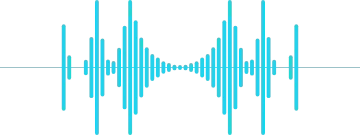
Spectrum

Spectrum element
Mirrored frequency bars growing up and down from a midline, with low frequencies in the centre. Key options in the Inspector:
  • Audio source: The audio item, or whole track, to follow.
  • Bars: Number of bars, an odd number (3–127).
  • Sensitivity: Gain applied to the sound before drawing.
When to use: Music videos and beat-driven edits.